Keyboard Guides & Learning Resources
Mechanical keyboards can look like a wall of acronyms until you learn the underlying ideas: switch feel, layout trade‑offs, stabilizer tuning, and how keycaps change sound and texture. This library is built to make those ideas click—so you can stop scrolling spec sheets and start making choices that match your hands, your ears, and your daily workflow.
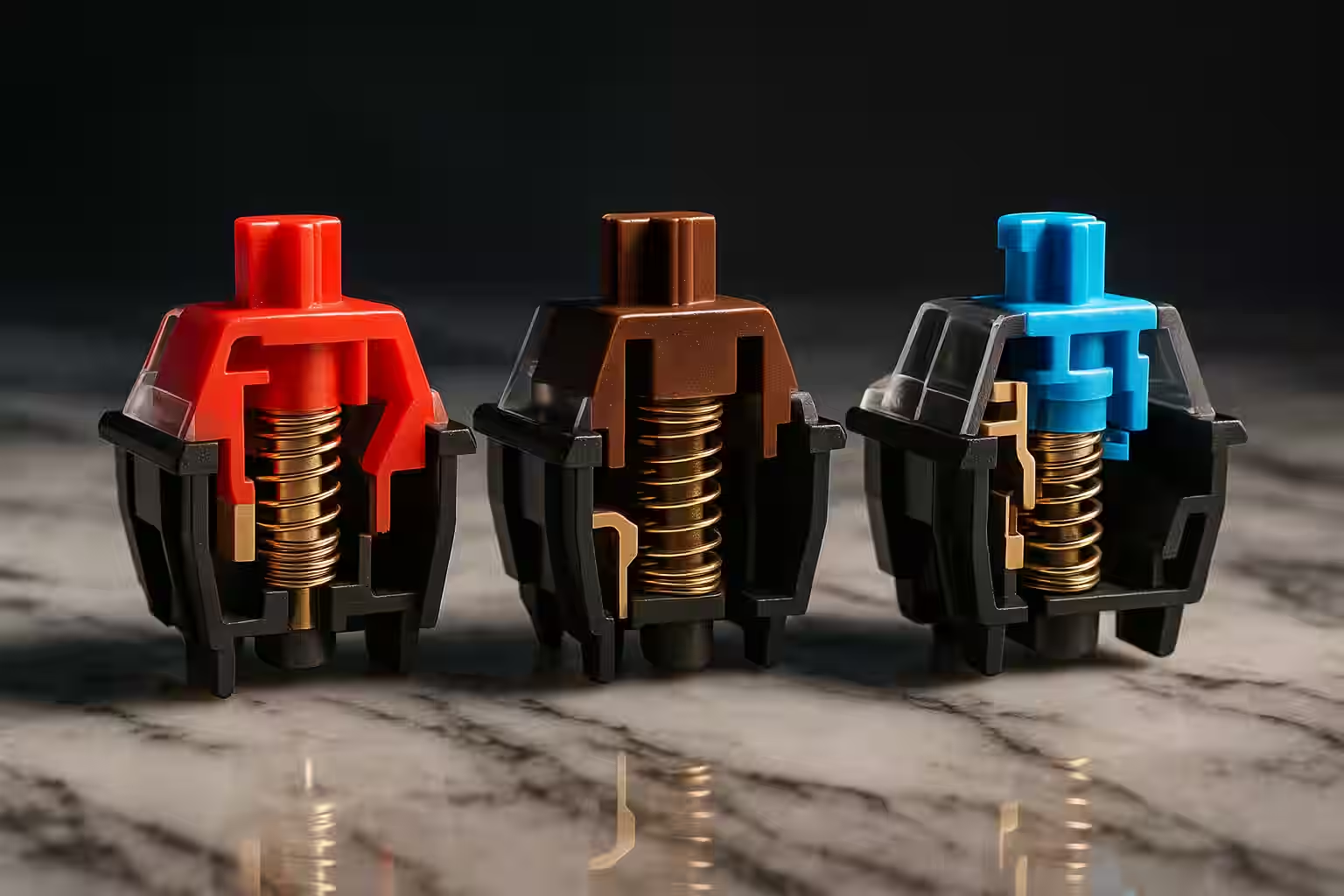
If you’re starting fresh, begin with Quickstart and keep the Glossary open as you browse. Then move straight into the two decisions that shape everything: switches and layout. The Switch guide helps you translate “tactile,” “linear,” and “clicky” into real feel and sound, and the Layouts guide shows you what you gain (and what you give up) as you move from full-size to TKL, 75%, 65%, and smaller.
After that, you can choose your own path. If your goal is “make it sound and feel better,” Stabilizers and Sound profiles deliver fast wins, and Keycaps explains why a keyboard can feel like a different instrument after a cap swap. If your goal is “build something custom,” start with Building and use Soldering only if your kit requires it. If you’re troubleshooting or extending features, Firmware is the map, and Maintenance keeps your board feeling crisp over time.
For quick practice between reads, repeat one step with a single change and take notes. Swap one switch type, tune one stabilizer, or change one keycap profile and listen for what moved: pitch, resonance, and bottom-out feel. That “one variable at a time” habit is what turns opinions into preferences.